For teachers
Signing in
Sign in at Teacher sign-in with the account your school gave you. Students never use this page: they sign in with a username and join with a class code.
Programs
A program is a series of missions, usually a few lessons' worth. Your programs are on the front page after you sign in.
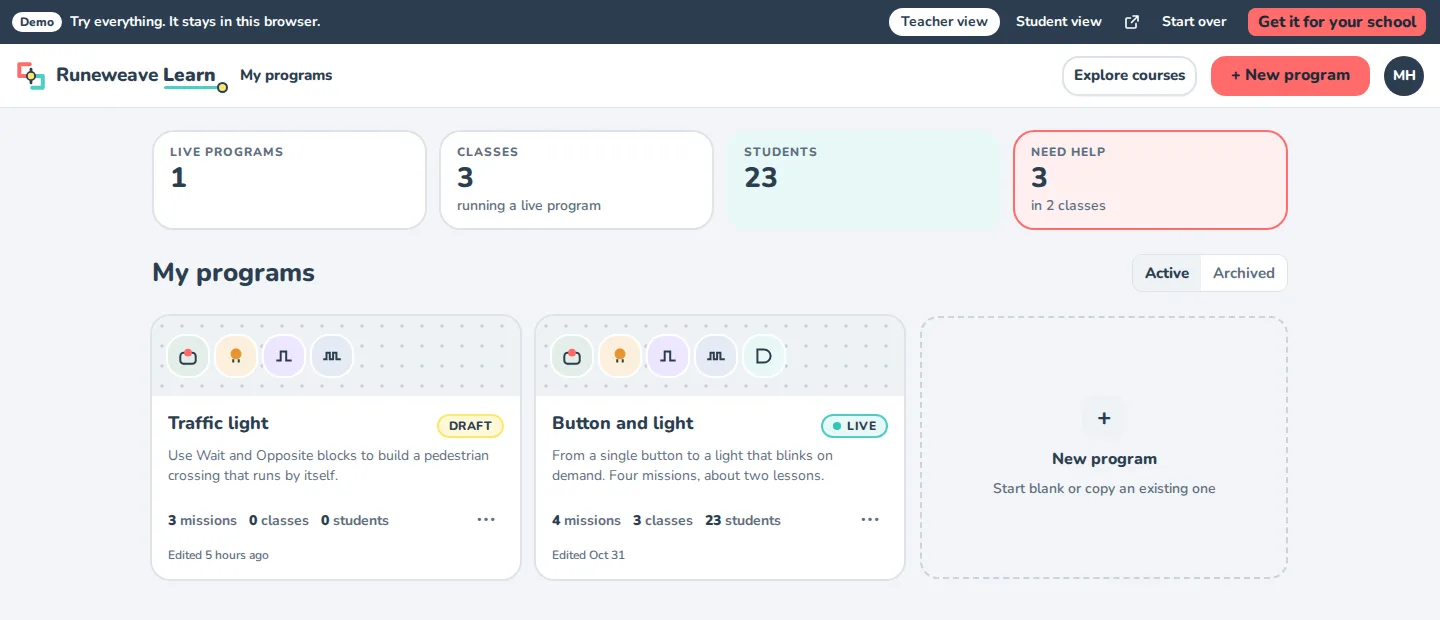
- New program: start from a blank program or a copy of one you have.
- Duplicate: make a copy to change without touching the original.
- Status: a program is a Draft while you work on it, Live once published, and Archived when you're done with it.
Writing missions
Open a program and choose Edit. Each mission has:
| Field | What it's for |
|---|---|
| Title | Short and inviting: "Make it click". |
| Goal | One sentence the student sees on the mission card. |
| Toolbox | Which blocks the mission offers. At the Explore level students only see these; Build and Engineer show every block. |
| Steps | What to do, one step at a time. Each step can have a hint, shown only when the student asks for one. Wrap words in **double stars** to make them bold. |
The preview shows the mission as students will see it.
Publishing
Students only see a program once it's published, and classes can only take new students while it's live. Publishing freezes the current missions as a new version. Keep editing afterwards and nothing changes for students until you publish again, so you can fix a typo mid-lesson without pulling the rug out.
Every mission needs a title before you can publish.
Classes
A class runs one program. Add classes from the program's page; each gets its own class code, like KLIK-4821.
- Copy the code, or choose Show on the projector to put it on the big screen.
- New class code makes a fresh one if the old code got out. The old code stops working at once.
- A class card shows who is online now and how many need help.
Student accounts
Students don't need an email address. Open a class and go to Students:
- Add students: type a list of first names. Learn makes an account for each, with a username and a password, and adds them to the class. The passwords are only shown once: Print cards to hand out login cards, or write them down.
- Add by username: add a student who already has an account, for example from another class.
- New password: for a student who forgot theirs. The old password stops working.
- Remove from class: takes the student out of this class. Their account and their work in other classes stay.
Students can also make their own account and join with the class code.
During the lesson
The class page shows a progress table: every student, every mission, and how far they've got. It updates live while students work.
When a student presses Ask for help, they appear in the help list with the mission and step they're on and how long they've been waiting. Choose On my way when you go over, and the request is cleared.